 GlanceSSHApp Store
Connect through an SSH jump host in GlanceSSH
Route SSH and SFTP through a saved bastion, verify each server separately and troubleshoot private destinations without direct fallback.
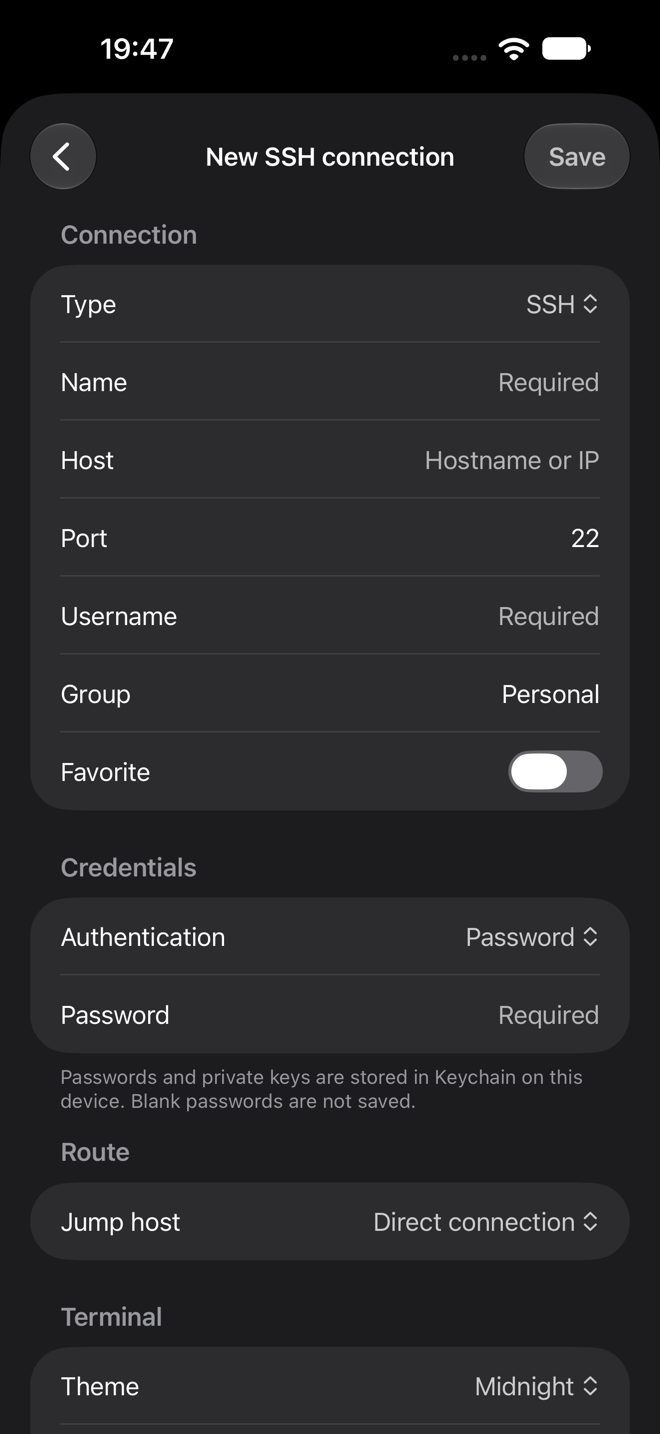
Understand the route
An SSH jump host, or bastion, is a reachable SSH server that can forward a connection to a private destination. GlanceSSH uses saved SSH connections for these hops. Each server has its own credentials and identity approval, and destination signing stays on your device.
You need permission to use the bastion, TCP forwarding allowed by its SSH configuration and a route from the bastion to the destination’s SSH port. GlanceSSH does not configure those server policies for you.
Save and verify the bastion
- Add an SSH connection for the reachable bastion with its address, port, username and authentication.
- Connect to it directly first. Compare its host-key fingerprint with the administrator’s trusted value and confirm sign-in works.
- Obtain the private destination hostname or IP address and credentials from the administrator.
The bastion and destination do not have to share a username, password or private key. Use the credentials intended for each server.
Set the destination’s jump host
- Add or edit the private destination’s SSH or SFTP connection.
- Enter the destination address and SSH port, plus its own username and authentication.
- Under Route → Jump host, select the saved SSH bastion.
- Save and connect. Verify every new host identity, including the destination’s fingerprint, before approving.
A saved bastion can itself reference another jump host. Chains support up to four jumps. Missing references, loops and non-SSH jump references are rejected. A failed routed connection does not fall back to direct access.
Use SFTP and local forwarding on the same route
The destination’s SSH route is used for terminals, SFTP and supported local forwarding. In Session options, local forwarding rules need an explicit Start action; they do not auto-start. Local listeners bind only to your device’s loopback address.
For a local forward, choose an unused local port and the target host/port reachable from the destination server. Stop the forward when finished. Closing the session cleans up its forwarding and owned jump connections.
Remote forwarding, dynamic SOCKS forwarding, general-purpose HTTP/SOCKS proxies and SSH agent forwarding are not supported.
Diagnose the failing hop
If the bastion is unreachable, check the first hop’s address, port, VPN and firewall. If bastion sign-in works but the destination fails, check the destination address, TCP forwarding permissions and network path from the bastion. Authentication errors may belong to either server; check the named hop.
Verify changed host keys independently. Server trust approvals remain local and must be established on each device. Update all syncing clients to a version supporting saved jump routes; older clients pause those records rather than treating them as direct connections.
See SSH connection basics, SFTP transfers and support.