 GlanceSSHApp Store
Transfer files with SFTP on iPhone, iPad and Mac
Save an SFTP connection in GlanceSSH, browse remote folders and review uploads and downloads before changing files.
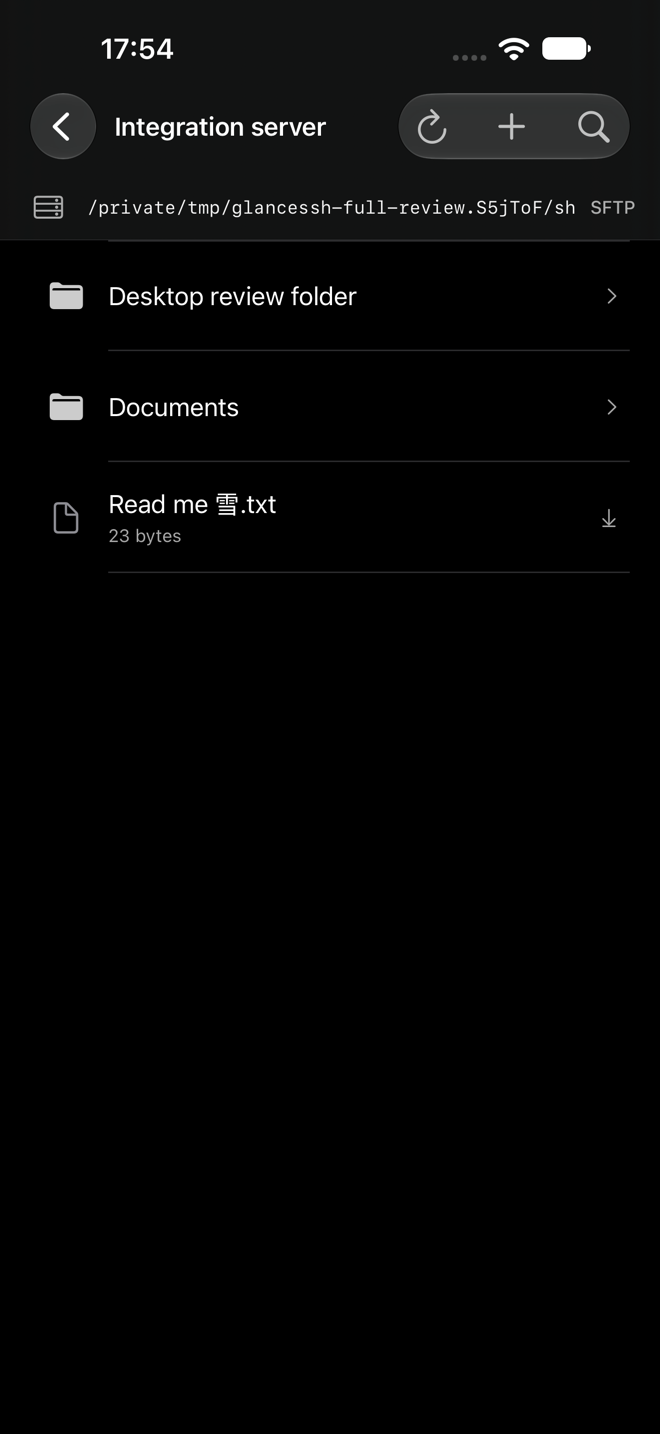
Use the server’s SSH access
SFTP transfers files over SSH. You need a reachable server offering SFTP, a username with access to the required folders and a password or supported SSH key. A working shell login is helpful, but the server must also permit the SFTP subsystem.
GlanceSSH supports SFTP on iPhone and iPad with iOS/iPadOS 18 or later and on Mac with macOS 15 or later. Transfers run while the app is active; they are not background transfer jobs.
Create or open an SFTP connection
- In Connections, choose Add connection (+), then SFTP.
- Enter a Name, Host, SSH Port (usually 22) and Username.
- Choose password or supported key authentication. For a private destination, select a saved SSH jump host under Route.
- Optionally set Directory to a permitted starting folder; leave it blank to start in the remote home directory.
- Save and connect. Verify the server’s fingerprint against a trusted value before approving.
You can also open SFTP from a saved SSH host’s context menu. Key import and jump host setup use the same SSH authentication principles.
Upload with replacement review
- Browse to the intended remote folder and choose the upload action.
- Select the local file or folder using the system picker.
- Review the proposed destination names and existing files. Keeping existing files is the default; choose replacement only for files you intend to overwrite.
- Start the transfer and keep the app active. Watch progress and use cancellation if needed.
File and folder uploads are supported, including recursive transfers. A folder transfer can make partial progress before a failure or cancellation; review the result before retrying.
Download and manage remote files
Choose a file or folder to download, then use the native exporter to save it to your chosen Files location. Downloads are staged in protected app cache and removed after export completes or is cancelled.
You can rename remote files and folders. Delete only items you intend to remove: SFTP directory deletion requires an empty directory and recursive deletion is not supported. Transfers reject symbolic links and unsafe export names, with tree limits of 10,000 items and 64 levels.
Troubleshoot a transfer
For permission denied, check the remote account’s read or write permissions on the selected folder. For a disconnect, check network reachability and reopen the connection before retrying. Confirm what reached the destination, particularly after a partial upload.
A broken upload may leave a hidden .glancessh-*.part file if the app cannot reconnect to clean up. Verify that the upload has stopped before removing a leftover staging file through an authorised server session.
For object storage rather than an SSH filesystem, follow Amazon S3 setup. More connection checks are on the support page.