 GlanceSSHApp Store
Browse and transfer Amazon S3 files with GlanceSSH
Connect to a known Amazon S3 bucket and region, supply supported AWS credentials and review file transfers and access errors.
Gather the bucket and credentials
GlanceSSH connects directly to a known Amazon S3 general-purpose bucket. You need its exact bucket name, AWS region and an authorised access key ID and secret access key. Temporary credentials also require their matching session token.
This is direct bucket access, not AWS console login or account-wide bucket discovery. AWS SSO, role assumption, credential auto-refresh, S3 Express, access-point ARNs and custom S3-compatible endpoints are not supported.
Save the S3 connection
- In Connections, choose Add connection (+), then Amazon S3.
- Enter a recognisable name, the bucket name and its region.
- Enter the access key ID and secret access key. Include the session token when using temporary credentials.
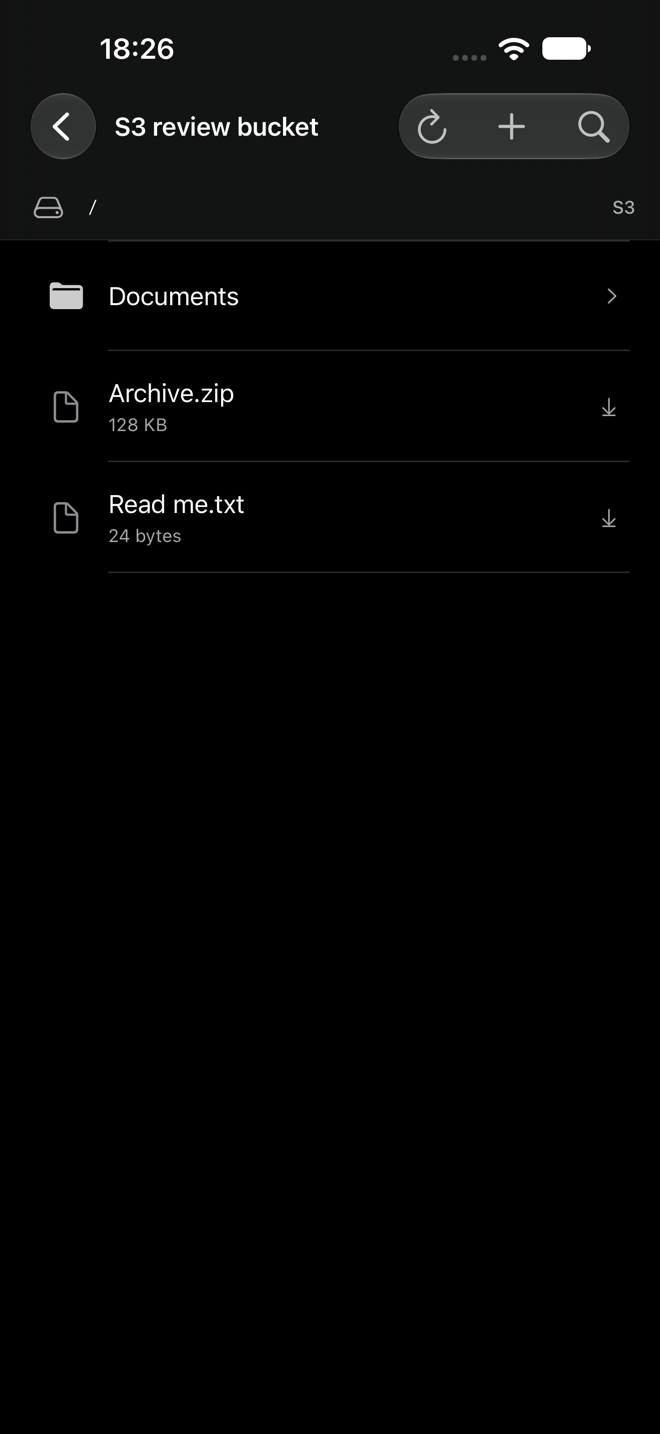
- Save and open the connection to browse the bucket’s objects and folder prefixes.
Keep all temporary credential fields from the same issued set and replace them when they expire. Credentials are stored in Keychain; supported credential records can participate in optional private iCloud sync.
Request only the permissions you need
Ask the bucket administrator for access to the required bucket and object prefix. Listing uses s3:ListBucket; reading uses s3:GetObject; uploading uses s3:PutObject. Deletion requires s3:DeleteObject. Renaming an object involves copy and delete permissions.
Bucket policies, identity policies and encryption-key permissions can all affect access. Do not make a bucket public to resolve an app error. See AWS access control guidance.
Upload, download and review changes
Browse to the intended prefix, select a file or folder upload and review keep-or-replace choices. Existing objects are kept by default. Downloads use the native exporter so you can choose the local destination.
Keep the app active throughout transfers. File and folder transfers support progress and cancellation, but work completed before cancellation can remain remotely. Transfers are bounded to 10,000 items and 64 levels.
S3 folders are object-name prefixes. Individual objects can be renamed by copy/delete up to 5 GB; prefix/folder rename and recursive deletion are not supported. Uploads use a single PUT with a 5,000,000,000-byte app limit; multipart upload is not supported. Versioned buckets can retain previous object versions.
Resolve access and region errors
Check the exact bucket name and region first. For expired-token errors, replace the whole temporary credential set. For Access Denied, ask the administrator to inspect the relevant policies and encryption settings; a valid access key does not itself grant bucket access.
Use AWS’s S3 access-denied guide for policy diagnostics. For a filesystem hosted on your own SSH server, use SFTP instead. Read privacy details for credential storage and optional sync.