 GlanceSSHApp Store
Connect to a Linux server from iPhone or iPad
Create your first GlanceSSH connection, verify the Linux server’s identity and open a terminal with a password or supported SSH key.
Get the server details
GlanceSSH opens an SSH terminal to a Linux machine you can reach. You need an iPhone or iPad running iOS or iPadOS 18 or later, a running SSH server, a permitted username and its password or supported SSH key. The same connection workflow is available on Mac with macOS 15 or later.
Ask the server administrator for the hostname, port and SHA256 host-key fingerprint. A private address may require your VPN or an SSH jump host. GlanceSSH does not provide a hosted relay.
Check that SSH is available
If you administer an Ubuntu server and OpenSSH is not installed, use its console to install the server package:
sudo apt install openssh-serverCheck that the service is running and that the firewall permits your device or VPN network to reach its configured SSH port. The usual port is 22. Installation and service names can differ on other Linux distributions; consult their documentation.
Ubuntu reference: OpenSSH server setup.
Add the SSH connection
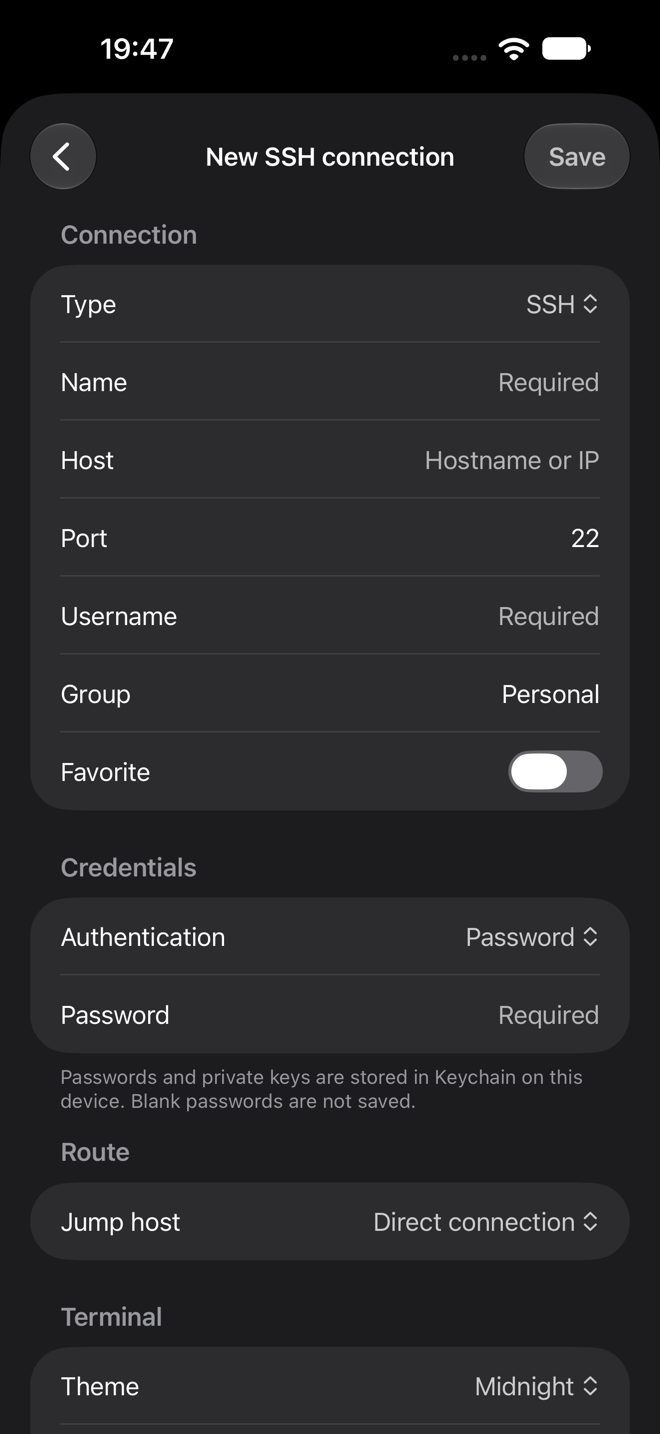
- In Connections, choose Add connection (+) and select SSH.
- Enter a recognisable Name, the server Host, Port and Username.
- Under Credentials, choose Password or the authentication type for your supported key. Enter the password or select the matching saved key.
- Leave Route → Jump host as Direct connection for a directly reachable server. Save, then open the saved connection.
- Compare the server fingerprint with the administrator’s trusted value before approving it. Once authentication succeeds, the terminal opens.
For key setup, follow Import and troubleshoot SSH keys. The private key stays with the client; the server needs its matching public key.
Work in the terminal
Start with a harmless command such as pwd to confirm the session is responding. Terminal controls include Esc, Ctrl, arrows and Tab. You can open independent sessions and return to an existing terminal through Open sessions while the app is active.
iOS and iPadOS can suspend background apps and interrupt connections. For long-running work, use a server-side session manager such as tmux if installed and permitted by your administrator; an app connection is not a guarantee that remote work will survive disconnection.
If the connection fails
For a timeout, check the address, VPN, firewall and server power state. Connection refused can mean the SSH service is stopped or the port is wrong. Authentication failure calls for checking the username, password or installed public key.
A changed server identity requires independent verification. After a confirmed legitimate change, remove the old approval in Settings → Trusted servers and reconnect. Do not dismiss an unexplained fingerprint mismatch.
For file access to the same server, use SFTP transfers. See support for more troubleshooting.