 GlanceSSHApp Store
Import and troubleshoot SSH keys in GlanceSSH
Import a supported OpenSSH Ed25519 or RSA private key, select it for a connection and diagnose format, passphrase and server permission problems.
Check the key format
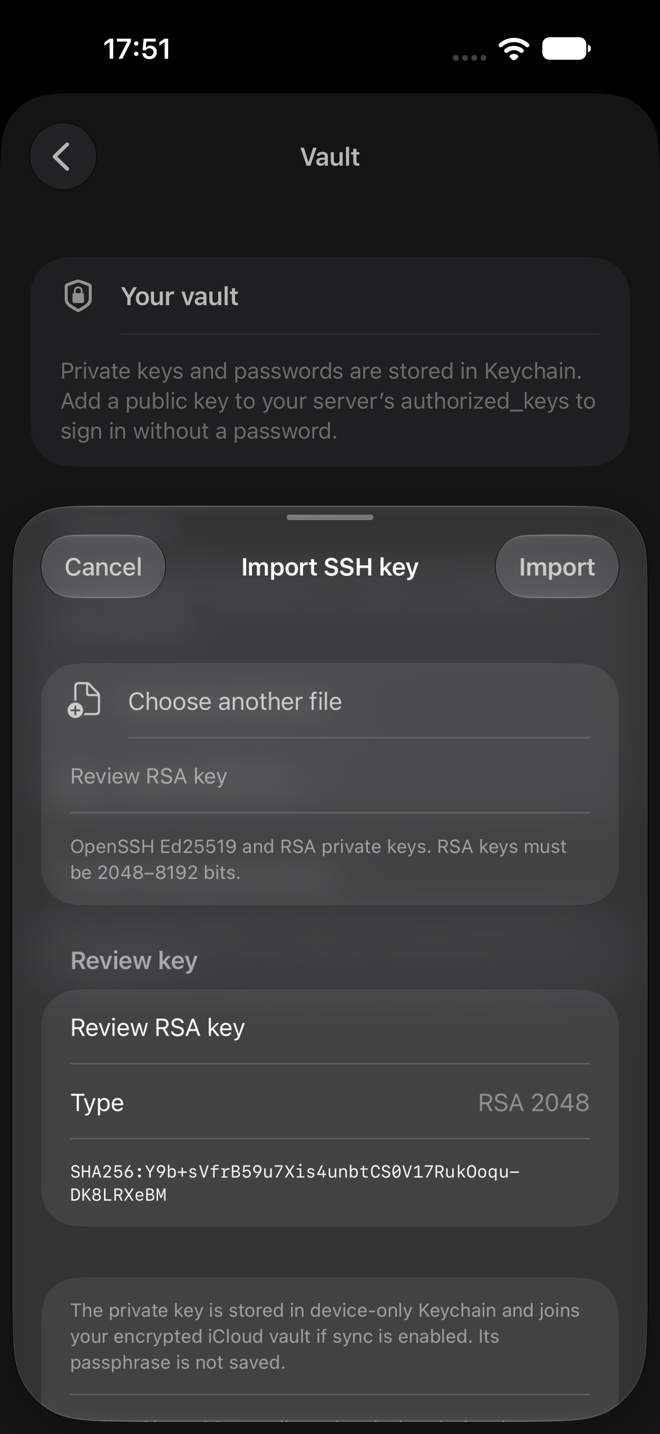
GlanceSSH imports OpenSSH Ed25519 and RSA private keys. RSA keys must be 2048–8192 bits. Supported encrypted OpenSSH files use AES-128/256-CTR with bcrypt. PEM files, unsupported ciphers and other key algorithms need conversion or a different supported key before import.
A filename ending in .pub contains a public key and is not the private key to import. The private key is sensitive: use a transfer method you control and avoid sending it through support messages.
Import and review the key
- Open Settings → Keys and credentials, then choose Import SSH key.
- Select the private-key file using the native file picker.
- Enter the file’s passphrase if requested. This unlocks the file; it is not the server account password.
- Review the name, key type and public fingerprint, then import.
- Edit your SSH or SFTP connection, choose the matching Authentication type and select the imported Key. Save the connection.
You can also generate an Ed25519 key in the app. RSA generation and private-key export are not supported. Optional iCloud sync can sync supported software keys; update every syncing device before using newer key formats.
Install the public key on the server
The server must authorise the matching public key for the exact username used by the connection. Give the public key to the administrator, or add it to that user’s ~/.ssh/authorized_keys using an existing trusted login. Preserve existing keys and keep each key on its own line.
The SSH directory and authorised keys file must have ownership and permissions accepted by the server. Typical permissions are 700 for ~/.ssh and 600 for authorized_keys. Server policy may impose further requirements. Keep an existing working login available while testing a new key.
Resolve common import and login errors
The file will not import
Check that it is an OpenSSH private key, its algorithm and RSA size are supported, and its encryption uses a supported cipher. A correct passphrase cannot make an unsupported format compatible.
The key imports but authentication fails
Check the selected key, remote username, installed public key and server authentication policy. GlanceSSH’s RSA authentication uses SHA-256/SHA-512 rather than falling back to SHA-1.
You need to inspect or convert a key
Use OpenSSH tools on a trusted computer, preserve the original and make a separate working copy before conversion. The ssh-keygen manual documents key inspection and format options. Do not remove passphrase protection just to bypass an import error.
Keep user keys separate from server identity
Your private key proves your user identity to the server. The host-key fingerprint proves which server you reached. Importing a user key does not approve a server’s host key, and trust approvals stay local to each device.
Return to the first SSH connection guide to test sign-in, or read the privacy policy for key storage and sync details.